Control de producto
Crea fotos de producto, conceptos de packaging, pósters para comercio electrónico e imágenes principales con mejor control de iluminación y materiales.
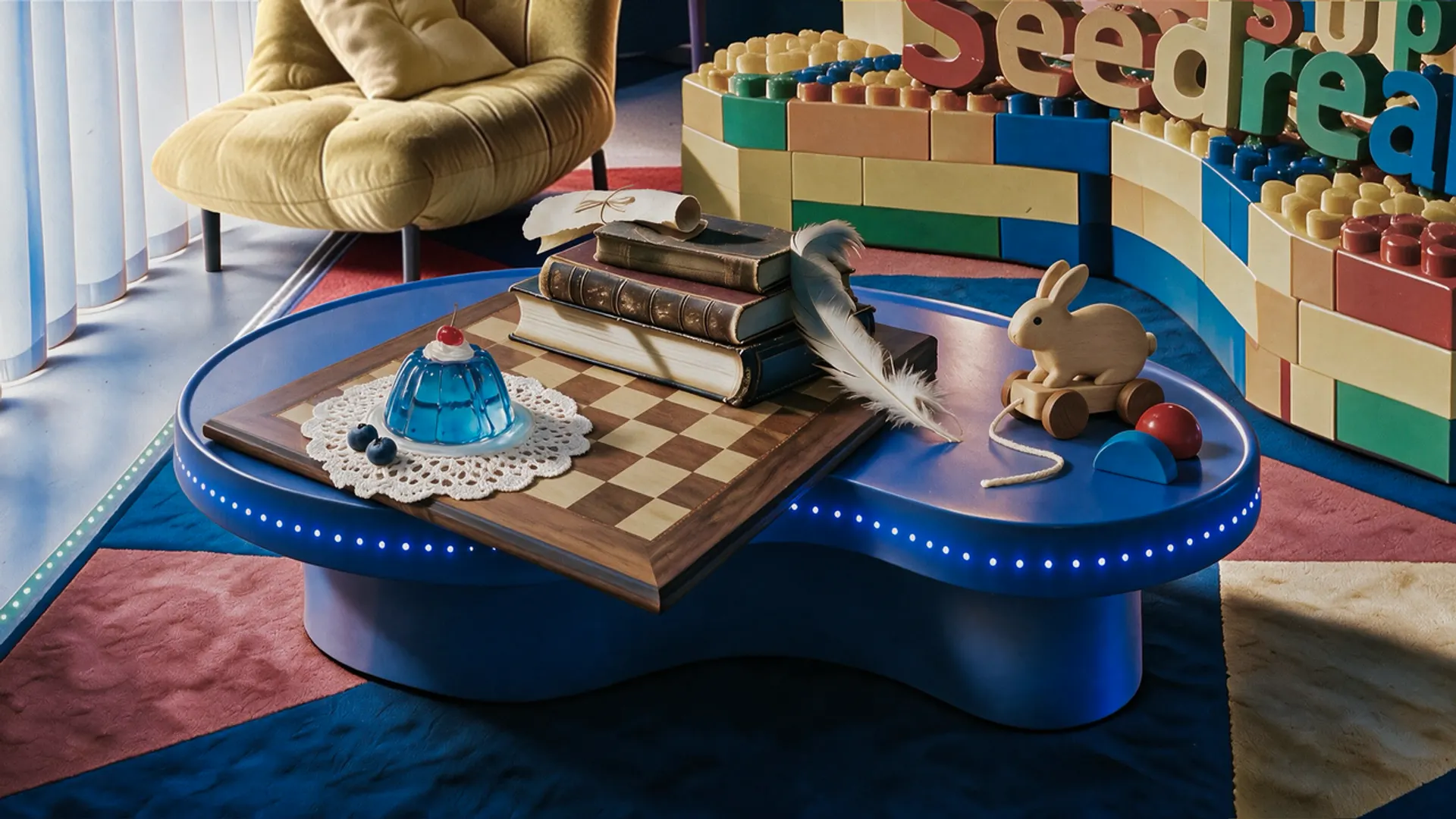
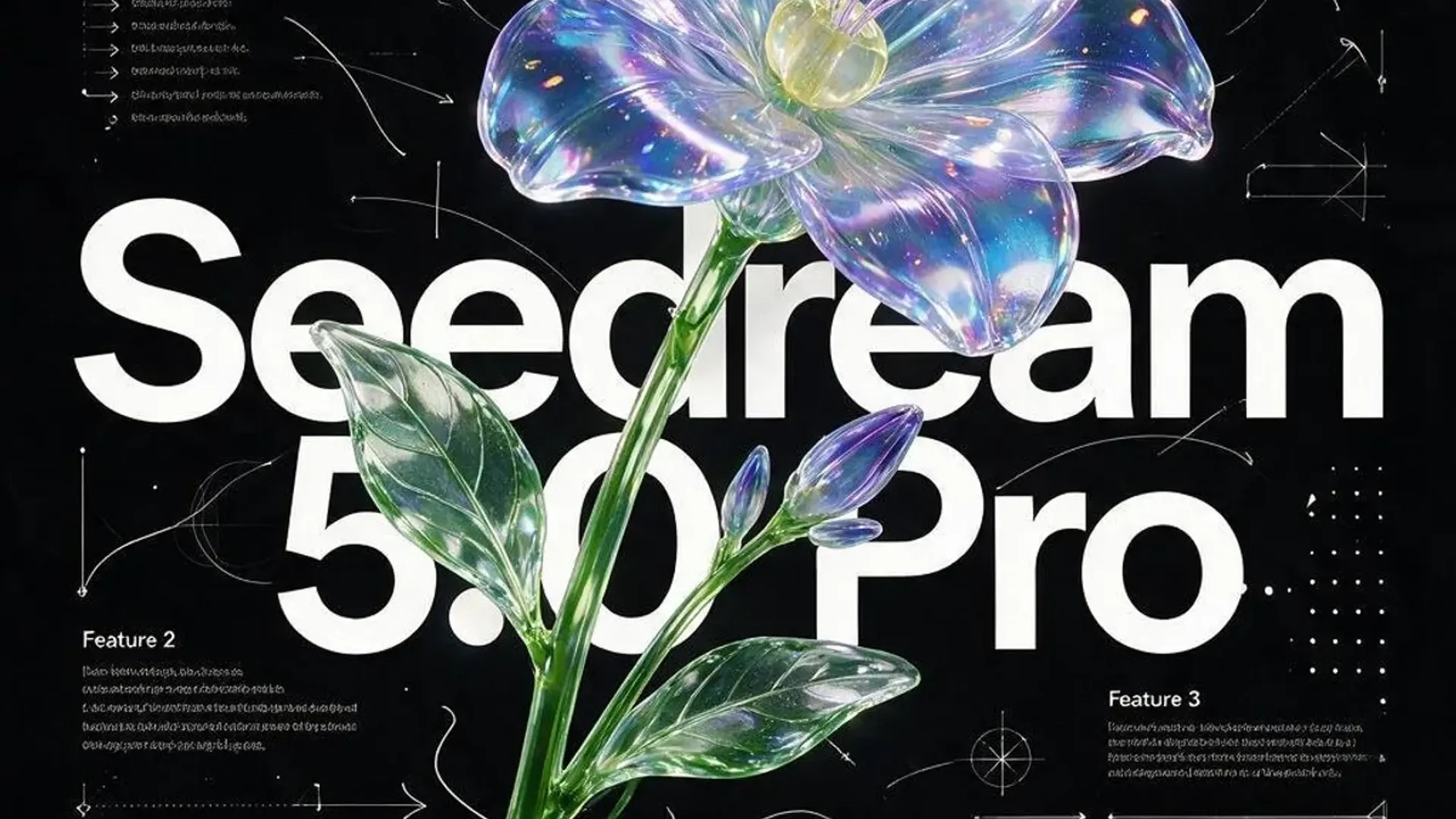
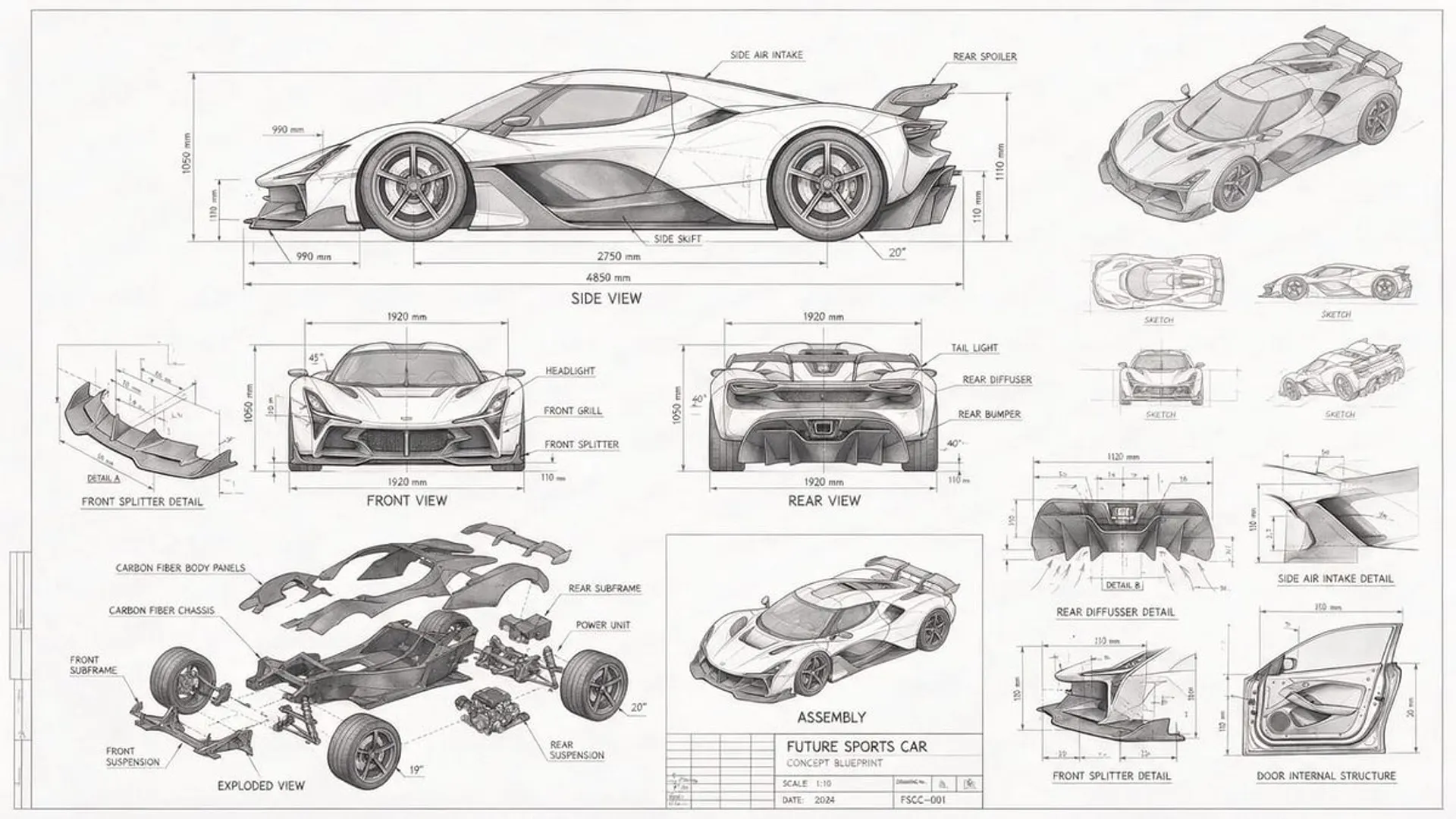
Usa Seedream 5.0 Pro cuando necesitas más control de diseño, composiciones densas, referencias limpias y visuales listos para producción.
Usar ahora Seedream 5.0 ProEmpieza con un prompt o referencias subidas, y crea fotos de producto, pósters y direcciones de edición en la misma página.
Dirección del prompt
Combina varias referencias de producto en una escena de bodegón. Conserva detalles de material, alinea perspectiva e iluminación y deja el diseño listo para revisión de concepto.
¿Necesitas un borrador más rápido? Lite sigue en el selector, pero esta página está pensada para trabajo con calidad Pro.
Fortalezas clave
Un espacio centrado en Pro para visuales de producto, campañas y ediciones con referencias que necesitan más control.
Crea fotos de producto, conceptos de packaging, pósters para comercio electrónico e imágenes principales con mejor control de iluminación y materiales.
Sube referencias cuando el producto, objeto, personaje, estilo o dirección de diseño debe mantenerse reconocible.
Construye pósters, llamadas visuales, composiciones en cuadrícula e imágenes tipo interfaz con jerarquía y espaciado más claros.
Mantén objetos, familias de color, ángulos de cámara y lógica de composición coherentes en una campaña.
Describe qué debe cambiar, qué debe permanecer fijo y qué detalles se deben conservar en el resultado.
Pasa de formato cuadrado a vertical, horizontal y panorámico sin perder la dirección creativa.
Métodos de control
Estos controles pertenecen a flujos con prompt e imágenes de referencia. Sube referencias marcadas y describe el resultado exacto, sin asumir un editor de capas por clic.
Usa flechas, cajas, números o notas en una imagen subida y explica qué debe cambiarse o conservarse.
Convierte formas simples, bloques de color o bocetos de composición en imágenes más limpias manteniendo la dirección visual.
Describe dónde deben ubicarse el sujeto, el espacio para texto, el producto, el fondo o las llamadas en el encuadre final.
Pide cambios en primer plano, fondo, objeto o material mientras el resto de la imagen se mantiene lo más estable posible.
Combina identidad del sujeto, material, pose, iluminación o diseño de varias referencias en un resultado coherente.
Crea conceptos de póster o letrero con texto grande y legible, luego revisa las palabras antes de publicar.
Ejemplos de prompts
Usa estas direcciones compactas como inicio para prompts de producción, referencias y revisión del resultado.
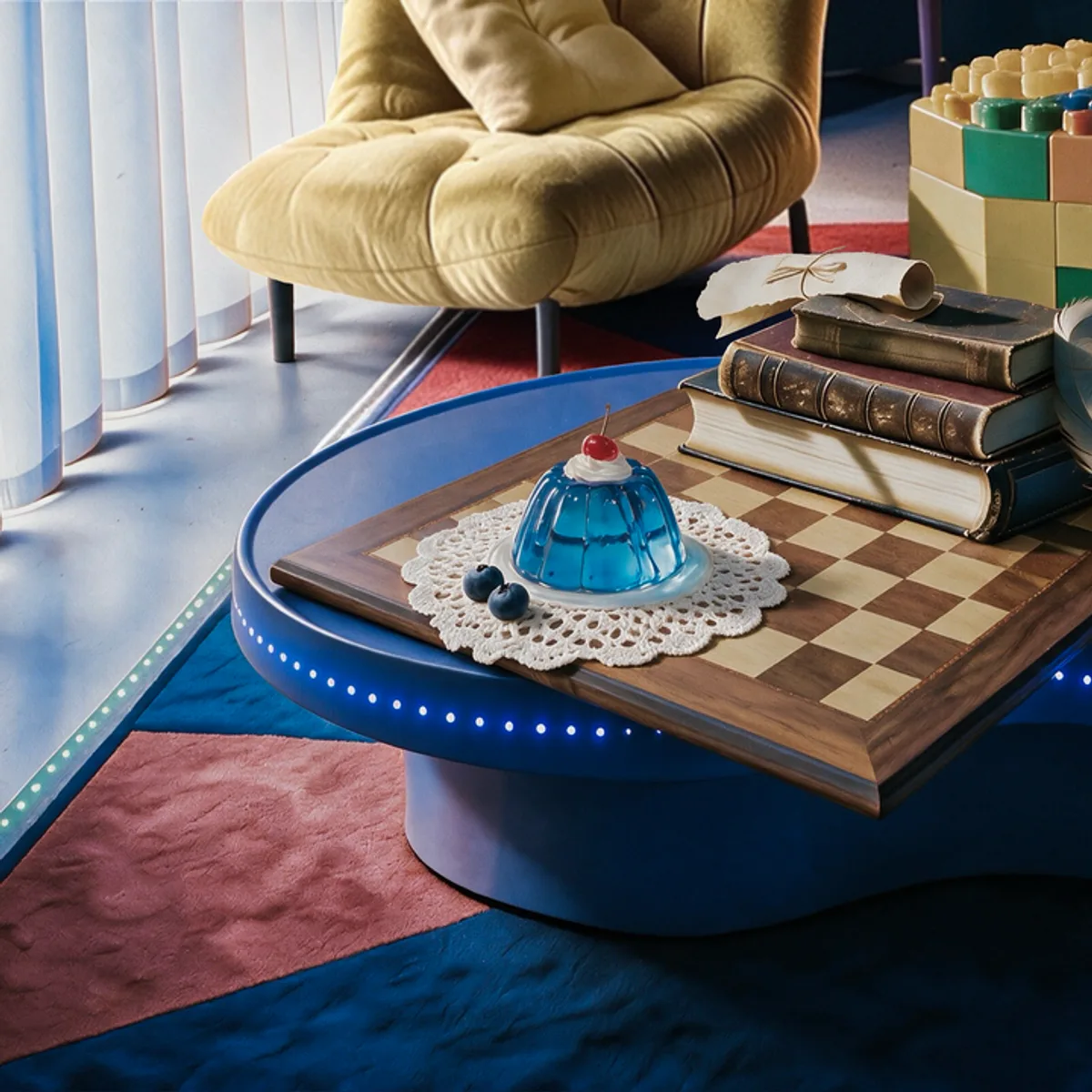
Dirección del prompt
Combina varias referencias de producto o material en un bodegón premium con perspectiva, iluminación y jerarquía del sujeto coherentes.
Revisar
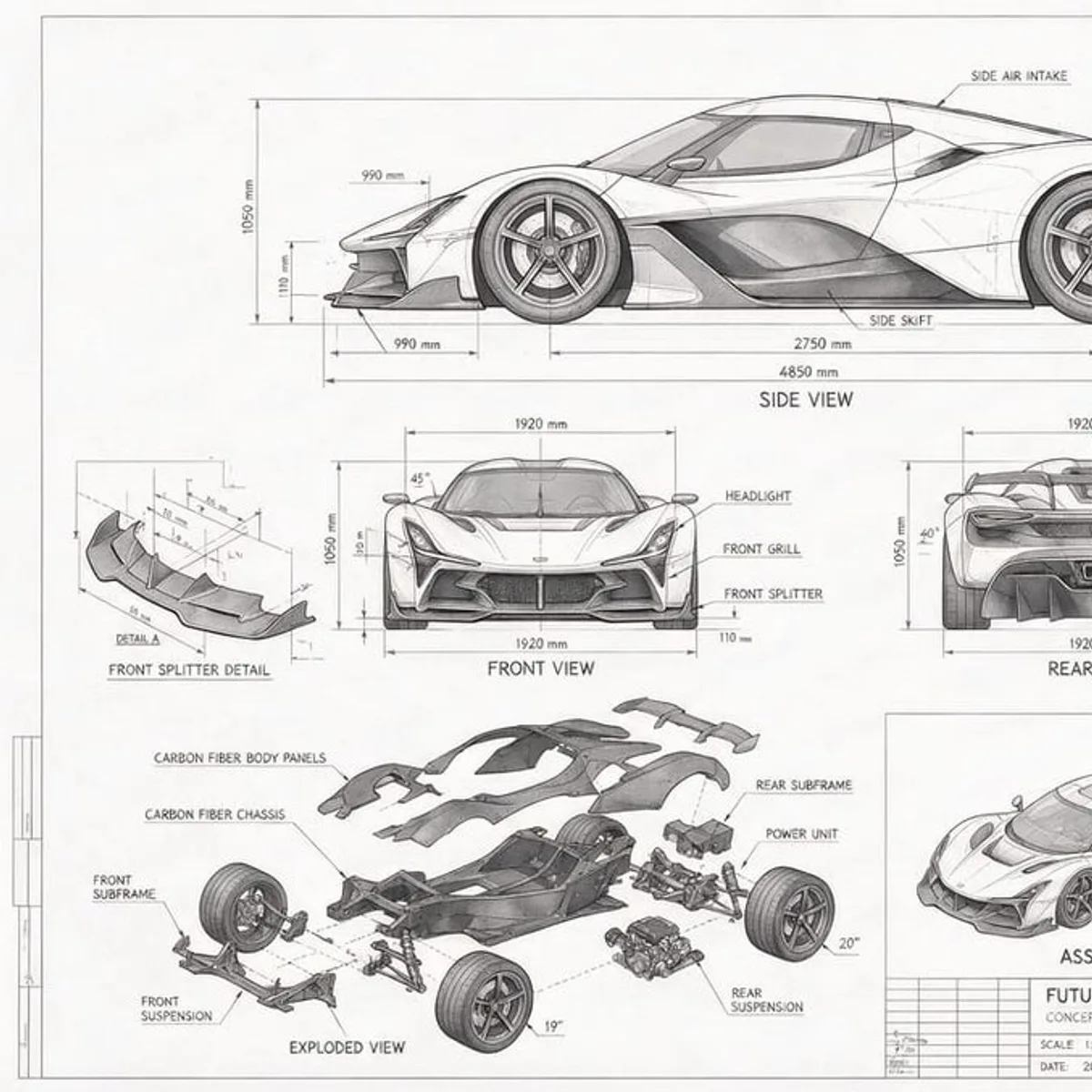
Dirección del prompt
Crea un diagrama estilo plano con vistas frontal, lateral y de detalle, llamadas claras, espaciado legible y jerarquía fuerte de líneas.
Revisar
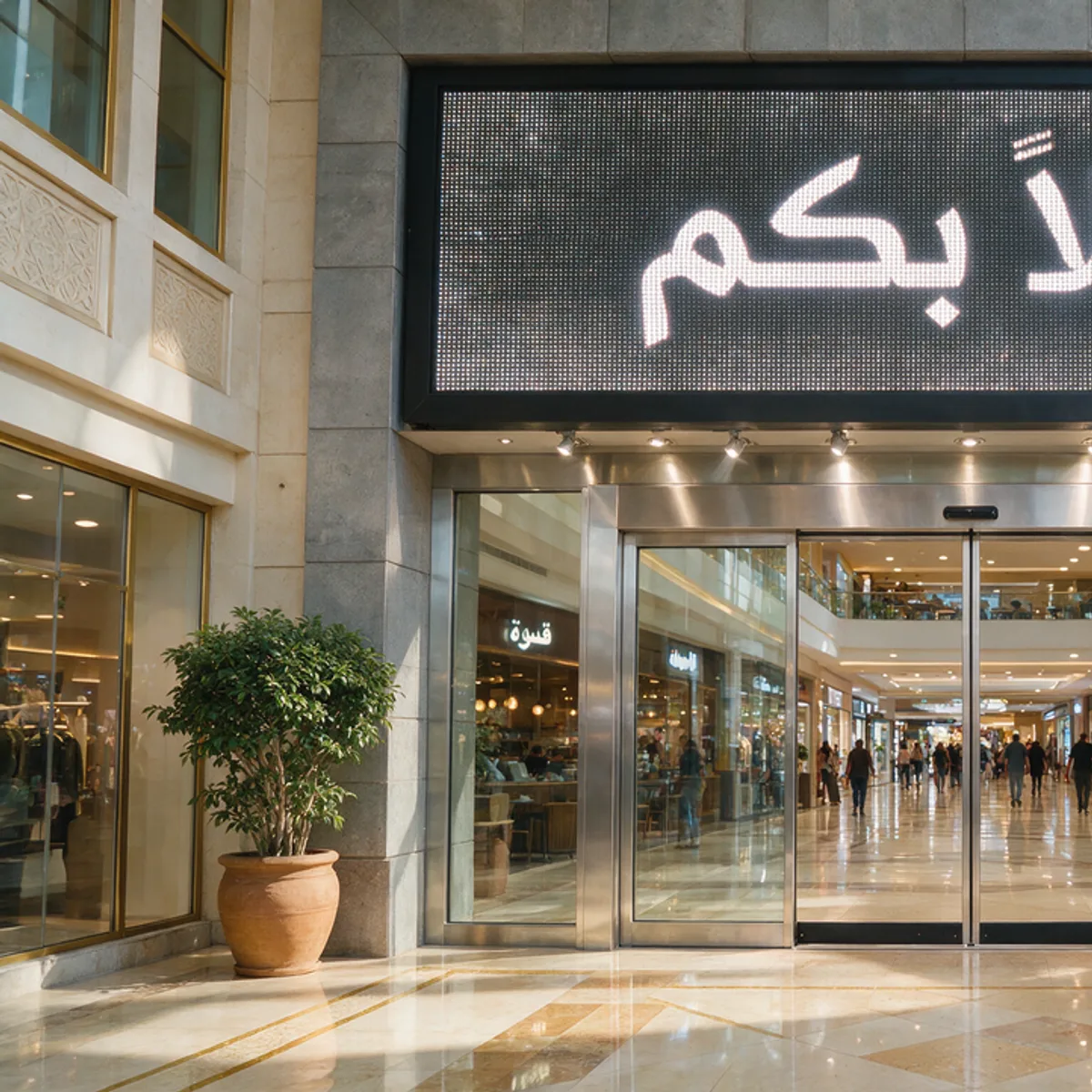
Dirección del prompt
Boceta un póster o letrero multilingüe con zonas grandes de texto, colocación realista, márgenes limpios y espacio para revisión manual.
Revisar
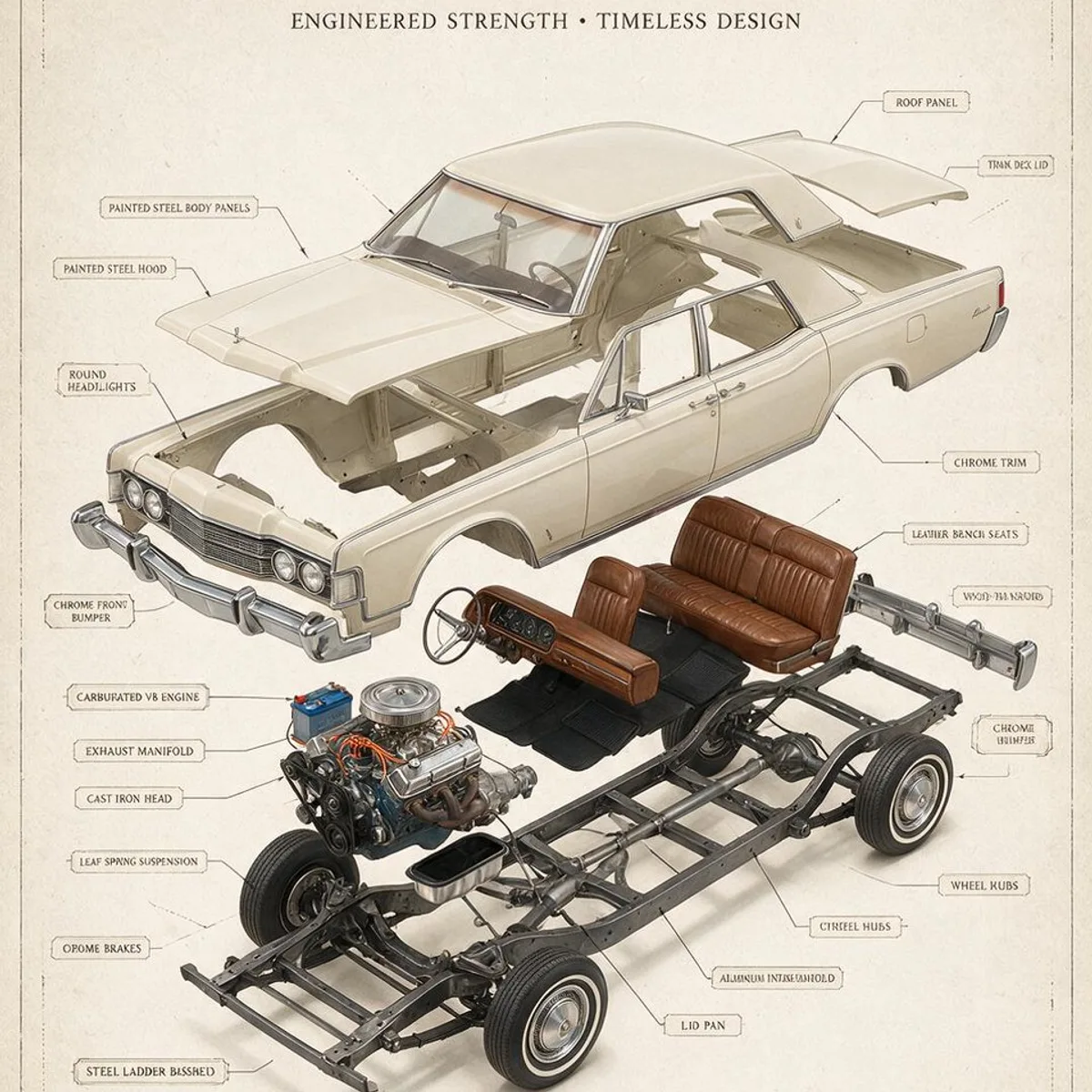
Dirección del prompt
Muestra un producto o concepto como piezas separadas con líneas de anotación, estructura visible, espaciado controlado y marco de presentación limpio.
Revisar
Consejos de flujo
Mantén el prompt enfocado, elige referencias con intención y revisa el resultado según el uso final.
Define primero si la imagen será para un anuncio, página de comercio electrónico, póster, guía de estilo o revisión interna.
Sube solo las referencias importantes y nombra el producto, material, pose, diseño o estilo que debe conservarse.
Separa sujeto, composición, luz, espacio para texto y detalles para dar a Seedream 5.0 Pro un objetivo visual claro.
Antes de usarla en campaña, revisa el recorte, realismo de materiales, zonas de texto y coherencia general.
Guía de edición controlada
Usa Seedream 5.0 Pro como una etapa de producción controlada, no solo como una caja de prompt. Indica el uso final, qué referencias deben guiar el resultado, qué debe mantenerse estable y qué debe cambiar. Esta página se centra en generación por indicaciones, carga de referencias, elección de proporción, formato de salida y revisión del resultado.
Trata las referencias como un brief visual. Sube el producto, objeto, personaje, muestra de material, dirección de diseño o tablero de estilo, y explica en el prompt qué debe seguir el resultado. Al usar Seedream 5.0 Pro en Nano Banana Pro, puedes añadir varias imágenes de referencia para combinar sujeto, fondo, material, pose y composición. Mantén la instrucción clara: conservar la forma, cambiar el material, simplificar el fondo o reservar más espacio para el titular.
Elige Seedream 5.0 Pro cuando la imagen debe pasar una revisión real: tarjetas de producto ecommerce, imágenes hero, pósters de campaña, diseños tipo infografía, visuales de marketing multilingüe o primeros fotogramas para video. Estos trabajos necesitan jerarquía limpia, objetos estables, iluminación creíble y espacio seguro para texto. Pro encaja mejor con menos resultados, pero más deliberados.
Escribe el prompt como un brief visual corto. Empieza con el sujeto y el propósito, luego añade composición, iluminación, distancia de cámara, material y el papel de cada referencia. Separa los cambios de los detalles fijos. Por ejemplo: conservar la silueta del producto, cambiar el fondo a un estudio limpio, añadir reflejos suaves, reservar espacio para titular y evitar logos o marcas parecidas a una marca de agua.
El flujo actual de Nano Banana Pro se basa en prompt e imágenes de referencia. Es bueno para una imagen pulida por solicitud, revisiones rápidas y ajustes dirigidos, pero textos pequeños, diseños densos y cambios locales finos aún necesitan revisión. Para resultados parecidos a capas, describe el efecto directamente: separar el producto del fondo, mantener intacto el sujeto, reconstruir el área alrededor o cambiar solo el material del objeto seleccionado.
Patrones de prompt
Usa estas estructuras compactas cuando necesites control. Mantén visibles las palabras exactas, roles de referencia y detalles fijos en el prompt.
Úsalo cuando una imagen subida deba guiar identidad, material, pose o composición.
Usa la referencia como sujeto principal. Mantén [detalle fijo], cambia [detalle objetivo], conserva [material/iluminación], salida en [ratio/uso].
Úsalo cuando el resultado deba parecer que solo cambió una capa visual y el resto se mantiene estable.
Mantén el sujeto y el ángulo de cámara sin cambios. Reemplaza solo [fondo/objeto/material]. Reconstruye sombras y reflejos de forma natural.
Para planos, mockups UI, diagramas, cuadrículas de póster e información visual densa.
Crea un [tipo de diseño] con [secciones]. Usa jerarquía clara, llamadas, espaciado y etiquetas legibles. Evita desorden y texto aleatorio.
Para letreros, borradores de campaña localizados y pósters bilingües que requieren revisión textual.
Coloca el texto exacto: [palabras]. Mantén letras grandes, separadas y fáciles de revisar. Deja márgenes para corrección manual.
Acceso a Seedream 5.0 Pro
Los créditos de Nano Banana Pro sirven para usar Seedream 5.0 Pro en generación desde texto, edición con imágenes de referencia y resultados listos para producción. Carga las tarjetas interactivas cuando quieras elegir un plan.
Los créditos de cualquier plan se pueden usar con Seedream 5.0 Pro.
FAQ
Seedream 5.0 Pro funciona mejor para imágenes de producto pulidas, pósters, composiciones densas, ediciones con referencias y creatividades finales donde el control de calidad importa más que el volumen.
Sí. Sube una o varias referencias cuando quieras conservar un producto, objeto, estilo o dirección de diseño en el resultado.
En Nano Banana Pro, Seedream 5.0 Pro ofrece salidas 1K y 2K para pasar de borradores rápidos a imágenes de calidad final.
Sí. Encaja bien con pósters, páginas de producto y otros diseños donde importan composición, espaciado y detalles legibles.
Describe el sujeto, la composición, la iluminación y los detalles que quieres conservar. Los prompts cortos y concretos suelen dar el resultado más limpio.
Puede producir ediciones tipo capa desde prompts y referencias, como cambiar fondo, material o tratamiento del primer plano mientras conserva el sujeto. La página actual de Nano Banana Pro no ofrece un editor de capas por clic, así que describe directamente el resultado tipo capa en el prompt.
Abre el generador de arriba y crea con Seedream 5.0 Pro desde el primer borrador hasta la imagen final.